Showing posts with label odi. Show all posts

Monday, 11 July 2016

Oracle Data Integrator Installation

ODI Installation:
  1. Download ODI Software from Oracle e-delivery (https://edelivery.oracle.com)  and Unzip the file
  2. Install the Java SDK 7
  3. Change the directory to jdk path and enter the below command. Installation screens find  below
http://2.bp.blogspot.com/-QvuvaVig3xg/U869JwXQYiI/AAAAAAAALF8/6shpUqTfpW4/s1600/2.png
ODI 12c Installer Splash Page
ODI 12c Installer Home Selector

Oracle Data Integrator Introduction & Architecture

Introduction:
Oracle Data Integrator provides a new declarative design approach to defining data transformation and integration processes, resulting in faster and simpler development and maintenance. Based on a unique E-LT architecture (Extract - Load Transform), Oracle Data Integrator not only guarantees the highest level of performance possible for the execution of data transformation and validation processes but is also the most cost-effective solution available today.
Here are the key reasons why companies choose Oracle Data Integrator for their data integration needs:
  1. Faster and simpler development and maintenance: The declarative rules driven approach to data integration greatly reduces the learning curve of the product and increases developer productivity while facilitating ongoing maintenance
  2. Data quality firewall: Oracle Data Integrator ensures that faulty data is automatically detected and recycled before insertion in the target application. This is performed without the need for programming, following the data integrity rules and constraints defined both on the target application and in Oracle Data Integrator.
  3. Better execution performance: traditional data integration software (ETL) is based on proprietary engines that perform data transformations row by row, thus limiting performance. By implementing an E-LT architecture, based on your existing RDBMS engines and SQL, you are capable of executing data transformations on the target server at a set-based level, giving you much higher performance
  4. Simpler and more efficient architecture: the E-LT architecture removes the need for an ETL Server sitting between the sources and the target server. It utilizes the source and target servers to perform complex transformations, most of which happen in batch mode when the server is not busy processing end-user queries.
  5. Platform Independence: Oracle Data Integrator supports all platforms, hardware and OSs with the same software.
  6. Data Connectivity: Oracle Data Integrator supports all RDBMSs including all leading Data Warehousing platforms such as Oracle, Exadata, Teradata, IBM DB2, Netezza, Sybase IQ and numerous other technologies such as flat files, ERPs, LDAP, XML.
  7. Cost-savings: the elimination of the ETL Server and ETL engine reduces both the initial hardware and software acquisition and maintenance costs. The reduced learning curve and increased developer productivity significantly reduce the overall labor costs of the project, as well as the cost of ongoing enhancements
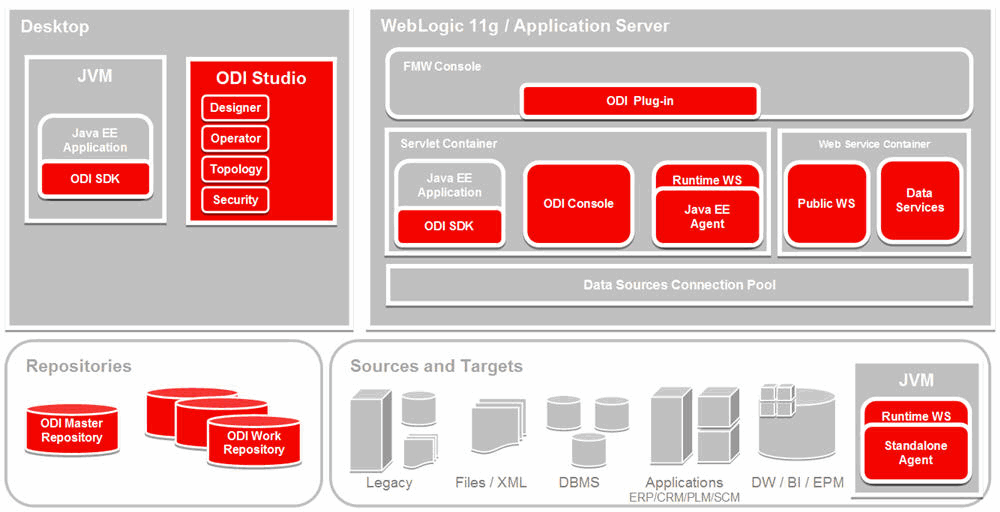
ODI Architecture:
Surrounding text describes Figure 1-1 .

Wednesday, 25 November 2015

load plan error: Caused By: oracle.odi.jdbc.datasource.ConnectionTimeoutException: A login timeout occured while connecting to the database

Error: Load plan failed due to login time out error.
Sol:
  1. Add the below parameter in Listener.ora 
CONNECT_TIMEOUT_LISTENER=0

  1. Add the below parameters in  Sqlnet.ora  
SQLNET.EXPIRE_TIME = 0
SQLNET.OUTBOUND_CONNECT_TIMEOUT = 0

SQLNET.INBOUND_CONNECT_TIMEOUT = 0

Friday, 20 November 2015

Redeploy the Java EE ODI Agent in WebLogic


    1. In WLS Console, navigate to Deployments and select oraclediagent from the list. Click on the Delete button at the top of the table to delete the deployment of the oraclediagent enterprise application. Click on Activate Changes.
    2. Still on the Summary of Deployments page, click on Lock and Edit and then click on the Install button.
    3. On the Application Install Assistant, provide the path to the oraclediagent.ear file. This path should be <ODI Home>/setup/manual/oracledi-agent. Select oraclediagent.ear using the radio button displayed:


    1. Click Next. Accept the default selections on the screen:


    1. Click Next. Select the ODI Managed Server as the deployment target:


    1. Click Next. Accept the defaults on the Option settings page:


    1. Click Next. Review the choices and then click Finish.


    1. Click on Activate Changes.
    2. On the Summary of Deployments page, select the oraclediagent enterprise application and then click on the Start button: Servicing All Requests. (Click Lock & Edit, if necessary). 
The oraclediagent should successfully start.

Sunday, 8 November 2015

Redeploy the Java EE ODI Agent in WebLogic

Redeploy the Java EE ODI Agent in WebLogic:
    1. In WLS Console, navigate to Deployments and select oraclediagent from the list. Click on the Delete button at the top of the table to delete the deployment of the oraclediagent enterprise application. Click on Activate Changes.
    2. Still on the Summary of Deployments page, click on Lock and Edit and then click on the Install button.
    3. On the Application Install Assistant, provide the path to the oraclediagent.ear file. This path should be <ODI Home>/setup/manual/oracledi-agent. Select oraclediagent.ear using the radio button displayed:

Wednesday, 28 October 2015

ODI STUDIO 11G HANGS AT “INITIALIZE SEARCH ENGINE” WHEN OPENING ANY REPOSITORY OBJECT

Cause:
         Cause: ODI layout file might be corrupt.

Solution:
  1. Remove the ODI layout file windowinglayout.xml
  2. Restart ODI Studio and try again.

Location of the xml file: %APPDATA%-->odi-->system11.1.1.6.0-->o.ide.11.1.1.6.38.61.92
For example:
C:\Users\<UserName>\AppData\Roaming\odi\system11.1.1.6.0\o.ide.11.1.1.6.38.61.92